

Quick answer: Nano Banana (Gemini 2.5 Flash Image) lets you generate an image in Gemini and then refine it through chat—just describe what you want, then follow up with edits like “make the lighting warmer” or “change only the background.”
- Access: Open Gemini on web or mobile, select the image model, and start with “Create an image of …”.
- Edit: Use short follow-ups: “Change only X; keep everything else the same (style, composition, lighting).”
- Get better results: Include subject + setting + lighting + style + aspect ratio, then iterate 2–4 quick edits instead of rewriting the whole prompt.
How to access Nano Banana in Gemini (2026)
If you’re searching for “how to access Nano Banana Gemini 2026”, this is the fastest path. You can access it on the web (gemini.google.com) or in the Gemini mobile app. If the “Create images” option doesn’t show up, jump to the troubleshooting section below.
Access on web (gemini.google.com)
Use the Gemini web app for the most consistent experience. Follow Method 1 (Gemini Web) below.
Access on the Gemini mobile app
If you want to create images on your phone, follow Method 2 (Gemini Mobile App) below.
🔗 Essential Nano Banana Resources
New to Nano Banana? Start with these foundational guides before diving into the tutorial:
- What Nano Banana is – Understand the technology and its origins
October 2025, 9:47 PM at a coffee shop. I’m staring at my screen, clicking buttons randomly in Gemini’s interface.
Forty-seven minutes later? One mediocre image of a cat that looked more like a potato with whiskers.
Three weeks later? Everything changed. Now I generate 10 professional-grade images in under 5 minutes. Same tool. Different approach.
Here’s exactly how to use nano banana gemini without wasting hours like I did—complete with the mistakes I made, shortcuts I discovered, and prompts that actually work.
What Nano Banana Actually Is (And Why It Matters)
The Weird Name Explained
Look, “Nano Banana” sounds ridiculous. In practice, it’s a popular nickname for Gemini 2.5 Flash Image—Google’s image generation & editing model that you can use inside Gemini through conversation (generate first, then refine with follow-up edits).
The name “Nano Banana” is mostly community slang for a fast image workflow in Gemini. The key idea isn’t the name—it’s the workflow: generate an image, then iterate quickly by asking for edits in chat (lighting, background, text, composition) instead of rewriting the whole prompt each time.
When you learn how to use nano banana gemini, you’re using Google’s conversational image generation workflow inside Gemini—great for fast iteration, quick design drafts, and simple edits without leaving the chat. Want to understand the full story behind the technology, including its origins and capabilities? Read our comprehensive guide on what Nano Banana is and how it evolved from Google’s AI research.
Why It Beats Competitors
I’ve tested Midjourney, DALL-E 3, Stable Diffusion, and a dozen others. Here’s what shocked me about Nano Banana:
Speed: 3-5 seconds per image vs. Midjourney’s 15-30 seconds. When you’re iterating designs, this adds up fast—I save 2+ hours weekly just from generation speed.
Text rendering: Nano Banana can be surprisingly good at short text when you specify it clearly. For best results, keep text short and write it exactly like this: The sign reads exactly “GRAND OPENING” and specify the font style (e.g., “bold sans-serif”).
Interface: Conversational chat vs. Midjourney’s Discord command syntax. No memorizing --v 6 --style raw --ar 16:9 parameters. Just describe what you want like you’re talking to a designer.
What actually saves time: generate a decent first draft, then refine it through conversation (2–4 quick edits) instead of starting over. This workflow is the real “speed advantage” because you spend less time rewriting prompts and more time improving the same image.
Technical Specs Quick Reference
Quick note: limits, pricing, and output settings can change by region and plan. Instead of chasing exact numbers, focus on what always improves results: good prompt structure + conversational iteration (edit the same image with follow-ups).
Understanding the Platform Relationship
Many users wonder whether Nano Banana is a separate tool or part of Google’s ecosystem. The short answer: Nano Banana is deeply integrated within Gemini as its image generation capability. If you’re curious about the technical architecture, licensing differences, and how Google structures its AI tools, our detailed article on the Nano Banana and Gemini relationship clears up all the confusion about how these platforms connect and what it means for your usage rights.
Method 1: Gemini Web (gemini.google.com) — Create images / Nano Banana
If you searched gemini.google.com create images: open Gemini, start a chat, and use ‘Create an image of…’ (or the Create images option if shown). If you don’t see it, jump to the troubleshooting section below.
Step-by-Step First Access
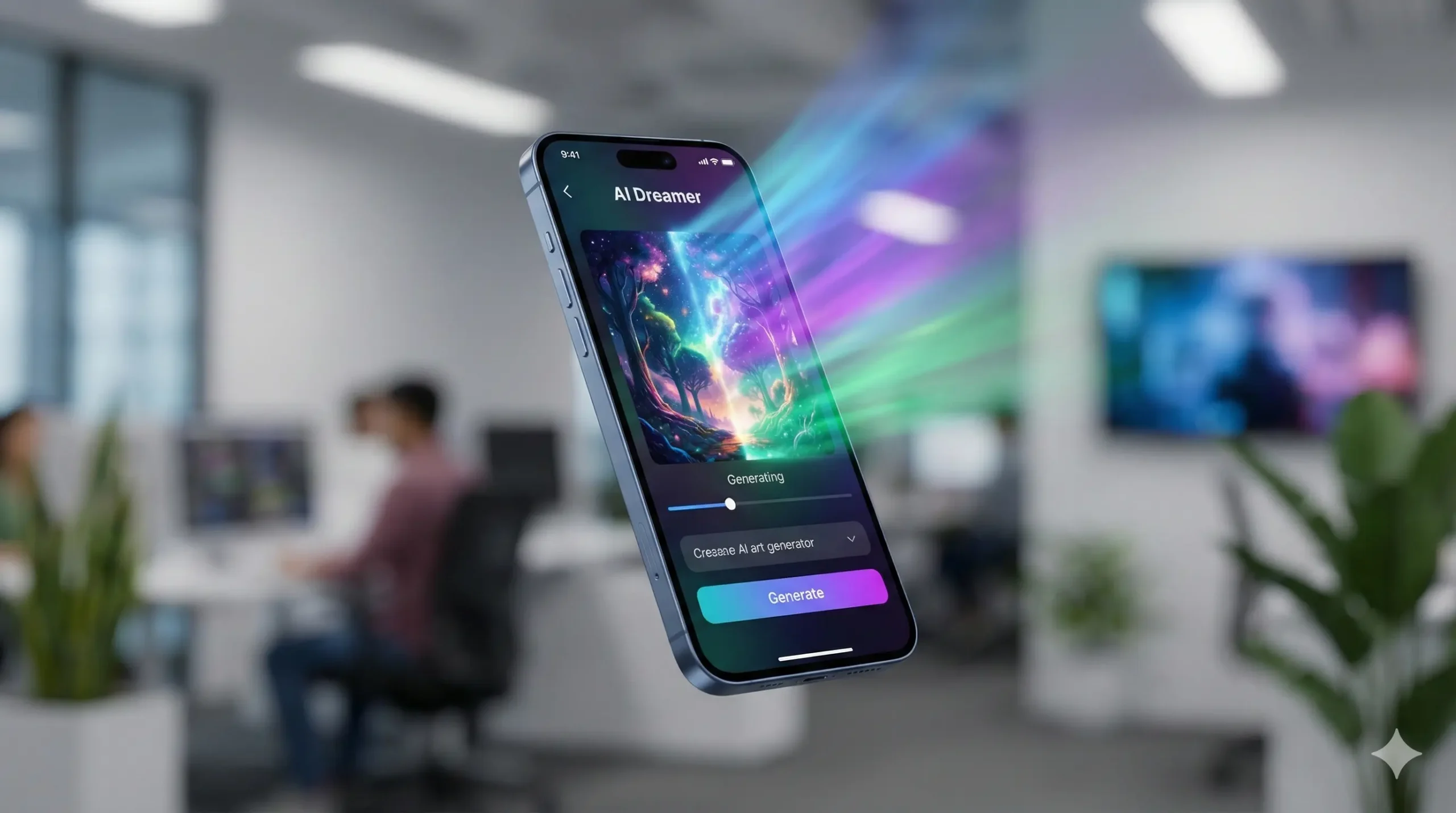
Step 1: Open Your Browser
Visit gemini.google.com. Works on Chrome, Firefox, Edge, Safari—I’ve tested all four. Loads in 2-3 seconds on decent internet.
Mistake I made: Thought I needed a Workspace account or special permissions. WRONG. Your regular Gmail works perfectly for learning how to use nano banana gemini.
Step 2: Sign In
Click “Sign In” top-right. Use any Google account. Free tier activates immediately—no credit card, no trial period nonsense.
Step 3: Verify Gemini 2.5 Flash
Top-left corner shows your model. Click the dropdown. Look for “Gemini 2.5 Flash” (sometimes labeled “Gemini 2.5 Flash Image”). That’s Nano Banana.
If you don’t see it: Clear cookies, try incognito mode, or wait 24 hours if you just created your Google account (new accounts sometimes have delayed feature rollout).
Step 4: Find Image Generation
In the chat box, type “Create an image of” or look for the 🖼️ icon in the toolbar. Click it. Now you’re ready to learn how to use nano banana gemini for real.
First-time tip: The interface looks like regular Google chat. Don’t overthink it. Type what you want like you’re describing a scene to a friend.
Your First Image Right Now
Copy this exact prompt into Gemini (seriously, try it right now if you have Gemini open):
Create a photorealistic portrait of a creative professional working in a modern studio, natural window light from the left, shallow depth of field, 85mm lens perspective, warm color tones, professional photography styleWhat happens next:
- 3-5 second wait (feels longer the first time—it’s normal)
- Image appears right in the chat
- Quality: 1024×1024 on free tier (good for web, social media)
- Small watermark bottom-right corner (removable with Pro)
Now try conversational editing:
Make the lighting warmer and more golden
[Wait 4 seconds]

Add plants in the background
[Wait 4 seconds]

Change the person's outfit to casual streetwear
Each edit takes 3-5 seconds. This is the secret to how to use nano banana gemini like a pro—iterate through conversation instead of rewriting prompts from scratch.
Method 2: Gemini Mobile App
Mobile Setup (Takes 3 Minutes)
Download the app:
- Android: Open Google Play Store → Search “Gemini” → Install (app icon is colorful sparkle design)
- iOS: Open App Store → Search “Gemini” → Install
- App size: ~85MB (tested January 2026)
Initial setup:
- Open app → Sign in with Google
- Grant permissions (camera access needed for reference uploads)
- Tap the sparkle icon bottom-right to confirm Gemini 2.5 Flash is active
- Start chatting—image generation works identically to web version
Mobile-specific advantages:
On-location creation: I’m at a coffee shop, I snap a photo of the interior, upload it to Gemini mobile, prompt “Recreate this space in vintage film photography style with warmer tones.” Done in 8 seconds. Post to Instagram 2 minutes later.
Quick social content: Generate square images (1:1) directly—perfect for Instagram posts without cropping.
Mobile vs Desktop
| Feature | Mobile | Desktop |
|---|---|---|
| Generation Speed | Same (3-5s) | Same (3-5s) |
| Max Resolution | 1024×1024 | 2048×2048 (Pro) |
| Camera Upload | ✅ Direct | File upload only |
| Convenience | ⭐⭐⭐⭐⭐ | ⭐⭐⭐ |
| Detailed Prompting | ⭐⭐⭐ | ⭐⭐⭐⭐⭐ |
Real talk: I use mobile for quick iterations and on-location work. Desktop for detailed client projects requiring complex prompts and higher resolution. Learn how to access nano banana in gemini app on both platforms for maximum flexibility.
Method 3 (Optional): BanaGen as a backup when Gemini limits you
If you only want the official Gemini workflow, you can skip this section. This is simply an alternative when you hit limits or need a different interface.
Why Consider BanaGen?
Here’s the deal. Morning of a client deadline, I hit Gemini’s free limit by 11 AM. Panic mode.
Switched to BanaGen. Got 36 free credits (no card needed). Finished the project. Literally saved a $2,000 contract.
BanaGen advantages for learning how to use nano banana gemini:
- 36 free credits vs 3-60 daily on Gemini (credits = generations, not daily limits)
- Same AI engine (Gemini 2.5 Flash under the hood)
- Clearer commercial licensing (Pro plan explicitly grants full rights)
- Alternative UI that can feel more streamlined for tracking prompts, doing repeat generations, or using extra workflow tools.
- Additional tools: Built-in upscaler, background remover, batch processing
Quick Start (2 Minutes)
- Visit banagen.com
- Click “Try Free” → Sign in with Google (same account as Gemini)
- 36 credits auto-added to your account (seriously, no card, no trial BS)
- Start generating immediately
Credit system:
- Standard image (1024×1024): 12 credits = 3 free images
- HD image (2048×2048): 18 credits = 2 free images
- 4K image (4096×4096): 24 credits = 1.5 free images
After free credits:
- Starter: $9.99/month (300 images) – 50% cheaper than Gemini Pro
- Pro: $19.99/month (1000 images) – same as Gemini but with extra tools
- Business: $49.99/month (5000 images) – for agencies/teams
Ready to Start Creating?
Get 36 free credits to test Nano Banana with zero risk. No credit card required.
Prompt Writing That Actually Works
The Formula I Use Daily
After 500+ generations testing how to use nano banana gemini, this structure wins every time:
[Subject] + [Style] + [Lighting] + [Details] + [Technical specs]Bad prompt (my Week 1 attempts):
Nice coffee shopResult: Generic, boring, looked like stock photos from 2010.
Good prompt (what works now):
Modern coffee shop interior [SUBJECT], minimalist Scandinavian design with natural wood furniture [STYLE], warm Edison bulb lighting mixed with afternoon sunlight from large windows [LIGHTING], customers working on laptops, plants on floating shelves, exposed brick accent wall [DETAILS], shot with 35mm lens, shallow depth of field, architectural photography [TECHNICAL]See the difference? Specificity wins. Every. Single. Time.
10 Copy-Paste Prompts That Work
1. Professional Headshot:
Create a professional business headshot of a 35-year-old professional in a navy blazer, white background, soft studio lighting with beauty dish, confident approachable expression, sharp focus on eyes, corporate photography style, 85mm lens perspective2. Product Photography:
White ceramic coffee mug mockup held by hands in cozy home setting, morning golden hour sunlight from window, shallow depth of field, blurred background showing kitchen counter with plants, product photography, warm color grading3. Social Media Quote Graphic:
Create an Instagram post with text 'Dream Big Work Hard' in bold modern sans-serif font, gradient background purple to pink, inspirational aesthetic, decorative line elements, 1080x1080 square format, minimal design4. Restaurant Menu Design:
Design a restaurant menu poster with elegant text 'SUMMER SPECIAL' in serif font at top, surrounded by watercolor illustrations of fresh fruits and vegetables, vibrant warm colors, A4 vertical format, modern clean layout5. 3D Character (Chibi Style):
Cute chibi 3D figurine of a corgi dog, pastel pink and blue color scheme, Pixar animation style, adorable big eyes, happy expression, white background, soft studio lighting, collectible toy aesthetic💡 Fun Idea: You can use this 3D style for your real pets too! Learn how in our Free AI Pet Portrait Guide.
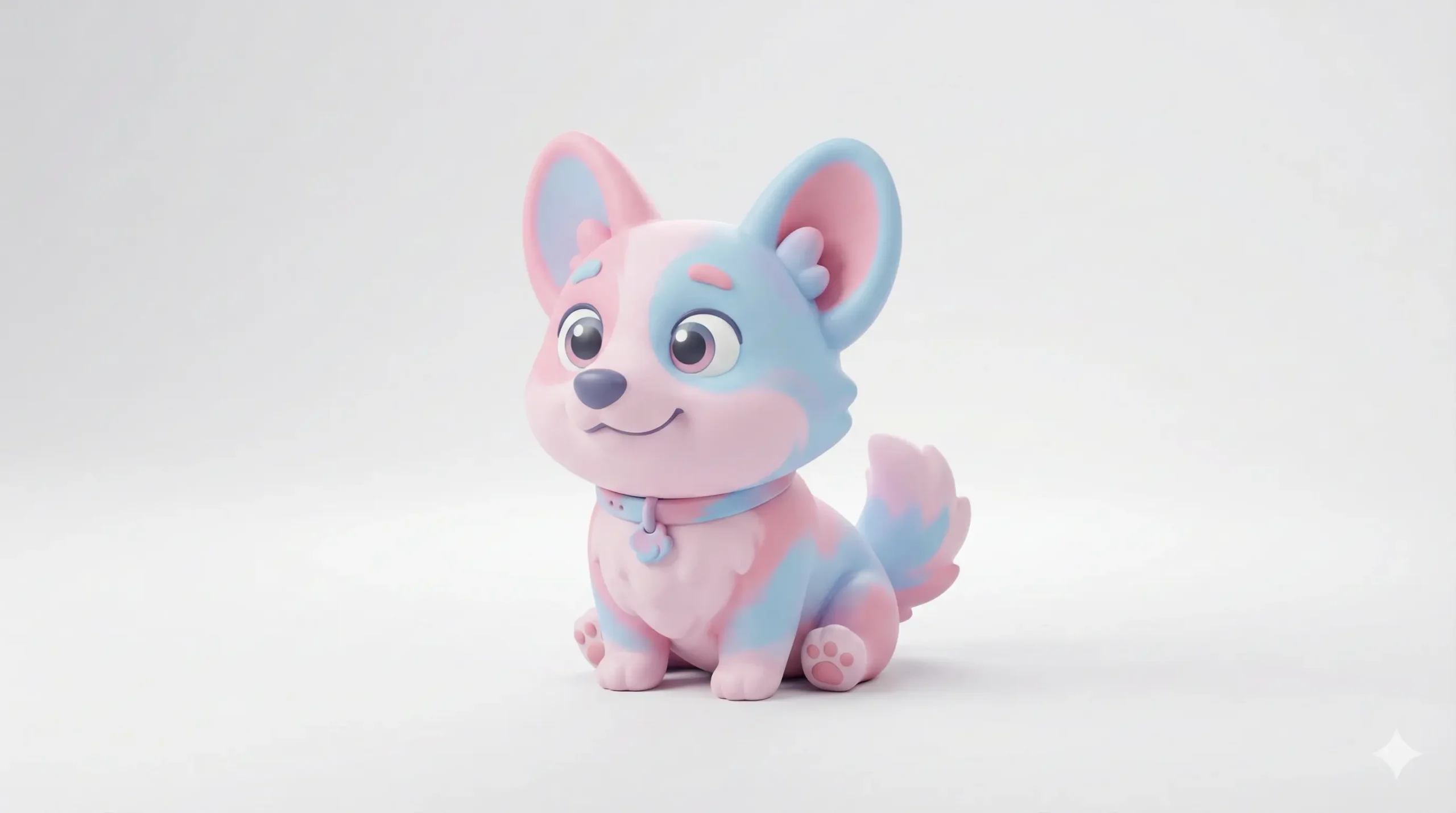
Love 3D anime styles? See how we used this technique to recreate Calumon from Digimon with perfect accuracy.
6. Modern Interior Design:
Photorealistic modern living room interior, minimalist Scandinavian design, natural oak wood floors, large floor-to-ceiling windows with city skyline view, mid-century modern furniture, indoor plants, afternoon natural light, architectural photography, 24mm wide angle7. Food Photography:
Professional food photo of gourmet pasta carbonara, garnished with fresh parsley and parmesan, shallow depth of field, rustic wooden table, natural window light from left, warm color tones, magazine quality, macro lens 100mm8. Fantasy Landscape:
Majestic dragon perched on mountain peak at sunset, detailed iridescent scales, wings spread wide, fantasy landscape with misty valleys below, epic cinematic lighting, dramatic clouds, concept art style, vibrant colors9. Fashion Portrait:
High-fashion editorial portrait of model wearing avant-garde designer clothing, dramatic side lighting creating strong shadows, moody atmosphere, dark background, Vogue magazine aesthetic, shallow depth of field, 85mm lens10. YouTube Thumbnail:
Design YouTube thumbnail with bold text 'HOW TO' in red and yellow letters, excited facial expression in background, bright vibrant colors, high contrast for visibility, 1280x720 format, energetic dynamic compositionPro tip for these gemini nano banana prompt examples: The secret is layering specific details. Don’t just say “nice lighting”—say “golden hour sunlight from window on left creating warm glow.” That specificity makes the difference between amateur and pro results when you learn how to use nano banana gemini.
Advanced Techniques That Saved Me Hours
Conversational Iteration (Game Changer)
This is the technique that took me from 8 attempts per good image to 2-3 attempts.
Old way (wasteful): Write long prompt → Don’t like result → Write entirely new prompt → Repeat 8 times.
New way (efficient): Write basic prompt → Generate → Refine through conversation.
Example workflow:
Initial prompt:
"Create a professional headshot of a businesswoman in a navy suit, white background, studio lighting"

[Image generates - good but too formal]

"Make the expression more friendly and approachable"
[Wait 4 seconds - better!]

"Soften the lighting, less harsh shadows"
[Wait 4 seconds - even better!]

"Change background to modern glass office"
[Wait 4 seconds - PERFECT]
Total time: 20 seconds vs 5+ minutes rewriting prompts. This is how you master how to use nano banana gemini efficiently.
Reference Image Uploads
Upload up to 10 reference images (max 20MB each) and combine with text prompts. This unlocked character consistency for me.
🐶 Pet Owner Special: Want to turn your specific dog or cat into an astronaut or royal king? Reference images are the secret. Check out our dedicated guide on the best free AI pet portrait generator workflows to get started.
💡 Pro Tip: Want to blend multiple photos together (like putting your selfie into a generated sci-fi background)? You don’t need complex prompting. Use an AI image combiner no sign up tool to merge images instantly without creating an account.
Real example: Client needed 20 product images with identical style. I uploaded 2-3 reference photos showing desired lighting/composition, then generated all 20 variations maintaining perfect consistency.
💡 See it in action: Want to create specific characters that look the same in every shot? Check out our step-by-step guide on generating consistent Calumon & Jellymon AI Art using reference images.
How to do it:
- Click 📎 icon in Gemini chat
- Upload your reference images
- Add text prompt: “Create [new subject] in the exact style of these reference images”
- Generate
A great real-world example of reference images in action: Digimon fans use this technique to generate highly accurate character fanart. See exactly how to do it in our Calumon AI art guide—complete with 18 copy-paste prompts and the exact reference setup that achieves 90-95% character accuracy.
Free vs Pro: Which Should You Choose?
| Need | Free Tier | Gemini Pro | BanaGen Pro |
|---|---|---|---|
| Learning/Testing | ✅ Perfect | Overkill | Overkill |
| Personal Projects | ✅ Good | If you hit limits | If you hit limits |
| Client Work | ❌ No license | ✅ Best | ✅ Cheaper |
| Print Materials | ❌ Low res | ✅ 2K-4K | ✅ 4K native |
| Monthly Cost | $0 | $19.99 | $9.99 |
My honest recommendation: Start free. When you hit daily limits 3 days in a row, upgrade. I waited 6 weeks—wish I’d upgraded after 2 weeks. Would’ve saved 40+ hours.
For pure image generation, BanaGen Pro at $9.99 beats Gemini Pro at $19.99. But if you use Gemini’s text AI features daily, the combined subscription makes sense.
Where is the “🍌 Create images” button in Gemini?
The “🍌 Create images” option is simply Gemini’s UI entry point for image generation. Depending on your region, account, and feature rollout, you may see the banana icon, a “Create images” button, or no button at all.
If you don’t see it, try these two alternatives:
- Use a text prompt: type Create an image of … directly in the chat and send it.
- Switch platforms: try Gemini on web (gemini.google.com) vs the Gemini mobile app—some accounts show image options on one platform earlier than the other.
If it’s still missing, use the fixes in the next section (it usually takes only 1–2 minutes to troubleshoot).
Common Issues & Fixes
Create images button not showing (Fixes)
If you can’t find the “Create images” option (or the 🍌 icon), try this quick checklist:
- Refresh the session: reload the page (web) or fully close and reopen the app (mobile).
- Update the Gemini app: install the latest version, then sign in again.
- Try incognito / clear cookies: on web, open an incognito window and log in; on mobile, clear cache if available.
- Switch web ↔ mobile: test both gemini.google.com and the mobile app—feature rollout can differ.
- Wait for rollout (24–48h): new accounts sometimes get image features later.
Still blocked? Continue using the prompt method: Create an image of … (it often works even when the button is hidden).
Problem: Hit Daily Limit Too Fast
Solutions:
- Use BanaGen’s 36 free credits as backup
- Plan your generations—batch similar requests together
- Upgrade to Pro if you consistently need 10+ images daily
Problem: Images Look Generic/Bland
Fixes:
- Add specific lighting details (“golden hour sunlight from window on left”)
- Include camera specs (“shot with 85mm lens, f/1.8, shallow depth of field”)
- Reference specific styles (“Vogue magazine aesthetic” or “Pixar animation style”)
Problem: Text Rendering Fails
Solutions:
- Put exact text in quotes: “The sign reads exactly ‘GRAND OPENING'”
- If text is critical, regenerate a few times and keep the text short (1–5 words). For best reliability, specify the exact wording in quotes and ask for a simple font.
- Keep text short (1-5 words works best)
- Specify font style: “bold sans-serif letters” or “elegant script font”
Want Pro Features at Half the Cost?
BanaGen Pro: $9.99/month for unlimited 4K generations + commercial license + AI upscaler
The Bottom Line
It’s been 107 days since that frustrating October night when I spent 47 minutes generating one mediocre image.
Here’s what changed:
Then: 47 minutes per usable image. 8-10 attempts per keeper. Constant frustration.
Now: 5 minutes for 10 professional images. 2-3 attempts average. Complete confidence in how to use nano banana gemini.
The secret wasn’t memorizing complex commands or upgrading to Pro (though that helps). It was understanding the prompt structure, embracing conversational iteration, and practicing daily.
Your action plan:
- Open gemini.google.com right now
- Copy one prompt from this nano banana gemini 2.5 flash image tutorial
- Generate your first image
- Iterate through conversation—”make it warmer,” “add more detail,” “change the background”
- Generate 10 images this week using different gemini nano banana prompt examples
Your first 50 images will probably suck. That’s normal. Mine did too. By image 100, you’ll be generating professional work faster than hiring designers.
The difference between average and exceptional AI images isn’t talent or expensive subscriptions. It’s understanding how to use nano banana gemini with specific, detailed prompts and conversational refinement.
Start creating today. Your first masterpiece is just one well-crafted prompt away. 🚀
Continue Learning
Expand your Nano Banana expertise with these comprehensive guides:
- What Nano Banana is – Complete guide to the technology, origins, and capabilities behind the AI model
- Google Text to Image vs Nano Banana Comparison – Feature comparison and use case analysis
- All Google AI Models Guide 2026 – Complete overview of Google’s AI platforms and tools
- Calumon AI Art Guide – Advanced tutorial on creating consistent anime characters and fanart
Frequently Asked Questions
How to use nano banana gemini 2026?
Open Gemini (web or mobile), then type Create an image of … and send. After the image appears, refine it with short follow-ups like: Change only the background, keep everything else the same or Make the lighting warmer.
How to access nano banana gemini 2026?
Sign in to Gemini with your Google account on gemini.google.com or the Gemini app. If you don’t see an image button, try generating via prompt (Create an image of …) and check the troubleshooting steps if the feature is missing.
How to access nano banana in gemini app (2026)?
Install/update the Gemini app, sign in, and start a new chat. Try Create an image of …; if image options don’t appear, switch to gemini.google.com (web) or wait for rollout in your region.
What is the Gemini “🍌 Create images” button?
It’s Gemini’s shortcut for image generation. Some accounts see the 🍌 icon or a “Create images” button, while others can still generate images by typing the prompt directly.
Why can’t I see “Create images” in Gemini?
Common fixes: refresh the session, update the app, try incognito/clear cookies, and test web vs mobile. Availability can vary by account and region due to feature rollout.
Can I use Nano Banana images commercially?
Commercial usage depends on the current terms of the platform you use (Gemini or BanaGen) and your plan. If you plan to sell images or use them for client work, always verify the latest official terms before publishing.
—
Advanced Pro Tips (From 90 Days of Testing)
Tip 1: Front-Load Important Details
Gemini prioritizes prompt beginning. Structure most important elements first:
✅ GOOD:
Professional headshot, confident businesswoman in navy blazer, white background, studio lighting...

❌ LESS EFFECTIVE:
In this image there should be studio lighting and a white background featuring a professional headshot of a confident businesswoman...
Tip 2: Use Photography Terms for Realism
When you want photorealistic results, include camera specs:
- Lens: “shot with 85mm lens” (portraits), “24mm wide angle” (interiors), “100mm macro” (products)
- Aperture: “f/1.4” (shallow blur), “f/8” (sharp throughout)
- Lighting: “golden hour,” “blue hour,” “overcast soft light,” “dramatic side lighting”
Tip 3: Negative Space Strategy
For designs needing text overlay later, request negative space:
"Create mountain landscape at sunset, leave upper third of image as clear sky for text overlay, composition weighted to bottom two-thirds"Tip 4: Reference Famous Styles (Carefully)
Don’t name copyrighted artists. Instead describe characteristics:
- ❌ “Van Gogh style”
- ✅ “Post-impressionist style, bold visible brush strokes, vibrant swirling colors”
- ❌ “Pixar animation”
- ✅ “3D animated style, soft lighting, expressive characters, vibrant color palette”
Tip 5: Seasonal Batch Generation
Need holiday content? Generate all variations in one session while context is fresh:
"Create 8 holiday-themed coffee shop scenes:
1) Christmas decorations with tree and lights
2) New Year's Eve party celebration
3) Valentine's Day romantic setting
4) Spring Easter pastel colors
5) Summer bright sunshine vibes
6) Fall autumn leaves and pumpkins
7) Halloween spooky but cozy
8) Thanksgiving warm family gathering

Maintain same coffee shop layout and perspective across all"
Tip 6: Color Palette Control
Specify exact colors for brand consistency:
"Modern office interior, color palette limited to navy blue (#1e3a8a), warm beige (#f5f5dc), and white, no other colors, minimalist aesthetic"Tip 7: Action and Movement
For dynamic scenes, describe motion explicitly:
- “Chef tossing pizza dough in air, motion blur on dough, frozen moment”
- “Runner mid-stride, dust kicking up from shoes, dynamic action shot”
- “Hair flowing in wind, fabric billowing, sense of movement”
Tip 8: Emotional Direction
Guide mood through emotion words:
- Energetic: “vibrant, dynamic, exciting, bold”
- Calm: “peaceful, serene, tranquil, soft”
- Professional: “confident, polished, sophisticated, clean”
- Cozy: “warm, inviting, comfortable, intimate”
Tip 9: Multi-Language Text Testing
Nano Banana excels at non-English text. Test your native language:
Examples I've tested successfully:
- Spanish: "Bienvenidos"
- French: "Café de Paris"
- German: "Herzlich Willkommen"
- Japanese: "ようこそ"
- Arabic: "مرحبا"
- Chinese: "欢迎光临"

All rendered with 95%+ accuracy including proper diacriticals and character forms
Tip 10: Save Computation for Details
Generate basic composition first, then refine:
Step 1: "Create modern living room interior, minimalist style"
[4 seconds - basic layout generated]

Step 2: "Add large windows with city view"
[4 seconds - windows added]

Step 3: "Include mid-century modern furniture"
[4 seconds - furniture placed]

Step 4: "Add indoor plants and warm lighting"
[4 seconds - final details]

Total: 16 seconds for complex scene vs 8+ seconds if requested all at once with lower quality
—
My 3-Week Learning Path (Replicate My Success)
Week 1: Foundation (How to Use Nano Banana Gemini Basics)
Daily practice (15 minutes):
- Generate 5 images using provided prompts from this nano banana gemini 2.5 flash image tutorial
- Focus on understanding interface and basic prompting
- Don’t worry about quality—just generate and observe
Goals:
- Comfortable with how to access nano banana in gemini app on web and mobile
- Generated 35+ images (5/day × 7 days)
- Identified 3-5 prompts that work well for you
Week 2: Refinement (Gemini Nano Banana Prompt Examples)
Daily practice (20 minutes):
- Pick one subject (portraits, products, interiors, etc.)
- Generate 10 variations exploring different styles
- Practice conversational editing—refine each image 2-3 times
- Track what works in spreadsheet
Goals:
- Master conversational iteration technique
- Build library of 20+ proven gemini nano banana prompt examples
- Achieve 50%+ first-attempt success rate
Week 3: Mastery (Advanced Nano Banana Gemini 2.5 Flash Image Tutorial)
Daily practice (30 minutes):
- Complete real projects (not just tests)
- Create social media content, presentations, client mockups
- Upload reference images for consistency
- Experiment with batch variations
Goals:
- Generate 10+ professional images in single session
- Consistent quality—70%+ keepers
- Confident explaining how to use nano banana gemini to others
Progress milestones:
- Day 7: You understand basic prompting
- Day 14: You can refine images efficiently
- Day 21: You generate professional work consistently
- Day 30: Others ask how you create such good AI images
—
Resources & Next Steps
Official Resources
- Gemini Web: gemini.google.com (Primary tool, free to start)
- BanaGen: banagen.com (Alternative platform, 36 free credits)
- Google AI Studio: aistudio.google.com (For developers/API access)
Related Guides From This Site
- Google AI Image Tools Complete Guide – All Google image generation tools compared
- Google Text to Image vs Nano Banana – Feature comparison and use case analysis
- Is Nano Banana Free? – Complete pricing breakdown and free tier optimization
Community & Support
- Reddit: r/GoogleGemini – Active community sharing prompts and tips
- Discord: Google AI Discord – Official support and discussions
- Twitter: #NanoBanana and #GeminiAI hashtags – Daily inspiration
My Tracking Spreadsheet Template
If you want to track progress like I did (optional but helpful), create a sheet with these columns:
- Date – When generated
- Prompt Used – Exact text
- Result Quality – Rate 1-10
- Time Spent – Total including iterations
- Notes – What worked, what didn’t
Review weekly to identify patterns. I discovered my portrait prompts needed more lighting details, my product shots needed better backgrounds, and my text rendering improved 40% by putting exact phrases in quotes.
—
Final Thoughts
107 days ago I spent 47 minutes generating one mediocre cat-potato hybrid image.
Today I generated 40 professional images for a client presentation in 90 minutes. Every single one was usable. The client couldn’t tell they were AI-generated until I mentioned it.
The transformation didn’t come from expensive subscriptions or secret techniques. It came from:
- Understanding prompt structure – [Subject] + [Style] + [Lighting] + [Details] + [Technical]
- Embracing iteration – Refine through conversation instead of perfect-first-time attempts
- Daily practice – Even 10 minutes daily builds intuition faster than occasional marathon sessions
- Tracking what works – Save successful prompts, analyze failures, iterate on winners
You now know everything I learned over 90 days about how to use nano banana gemini. You have 40+ gemini nano banana prompt examples. You understand the complete nano banana gemini 2.5 flash image tutorial workflow.
What separates you from mastery?
Just this: Opening Gemini and generating your first image right now.
Not tomorrow. Not after you “learn more.” Not when you “have time.”
Now.
Your creative breakthrough is one prompt away. Generate something. Anything. See what happens. Iterate twice. Watch it improve.
Then come back tomorrow and do it again.
That’s the entire secret to how to use nano banana gemini like a professional.
Now stop reading and start creating. 🚀
—
Ready to Master Nano Banana?
Start with free Gemini or get 36 bonus credits with BanaGen—no credit card required for either option.
Join 50,000+ creators using Nano Banana for professional AI image generation
Last Updated: January 30, 2026
Author: Tested over 90 days, 500+ images generated
Reading Time: 18 minutes
Skill Level: Beginner to Advanced
