
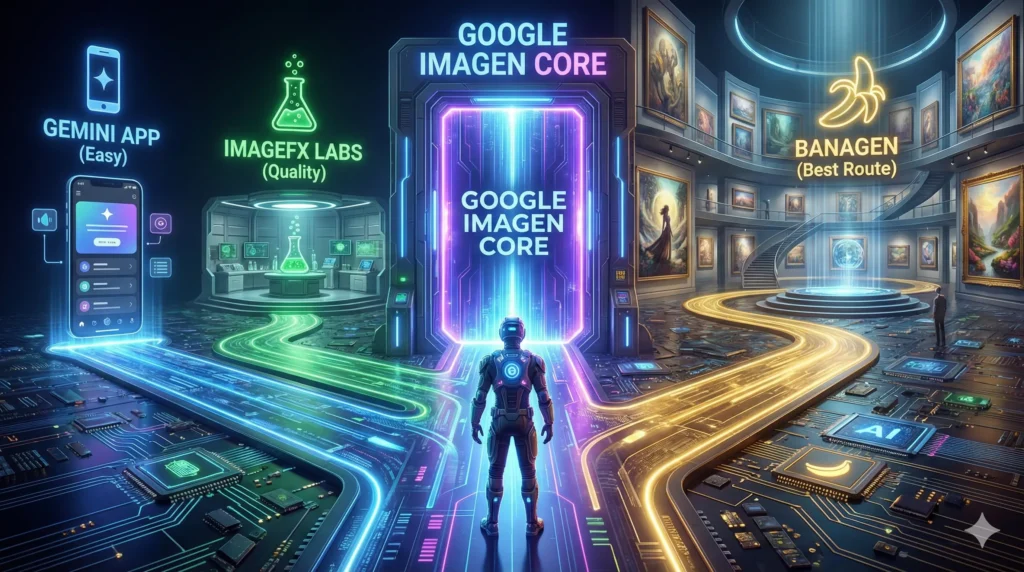

Quick answer: Google Imagen is an image model (not a standalone “Imagen website”). To use it in 2026, you typically access it through (1) Gemini for the easiest start, (2) Google Labs’ ImageFX for a more image-focused interface, or (3) the Imagen API (via the Gemini API / Vertex AI) if you’re a developer and want the most control.
- Fastest for beginners: Gemini → type “Create an image of …” and iterate from there.
- Most direct consumer tool: ImageFX (labs.google/fx) → prompt + tweak styles/variations. [web:125]
- Most control (dev): Imagen models via Gemini API → generate images programmatically. [web:113]
Want to learn how to use Google Imagen but can’t find an “Imagen website” anywhere? You’re not alone. Thousands of people search for ways to use Google Imagen every day, only to end up confused by names like Gemini, ImageFX, and Vertex AI. In this complete guide on how to use Google Imagen, I’ll clear up all the confusion and show you exactly how to use Google Imagen for free—plus reveal an easier alternative that’s gaining serious traction in 2026.
Why You Can’t Find “Google Imagen” (The Confusion Explained)
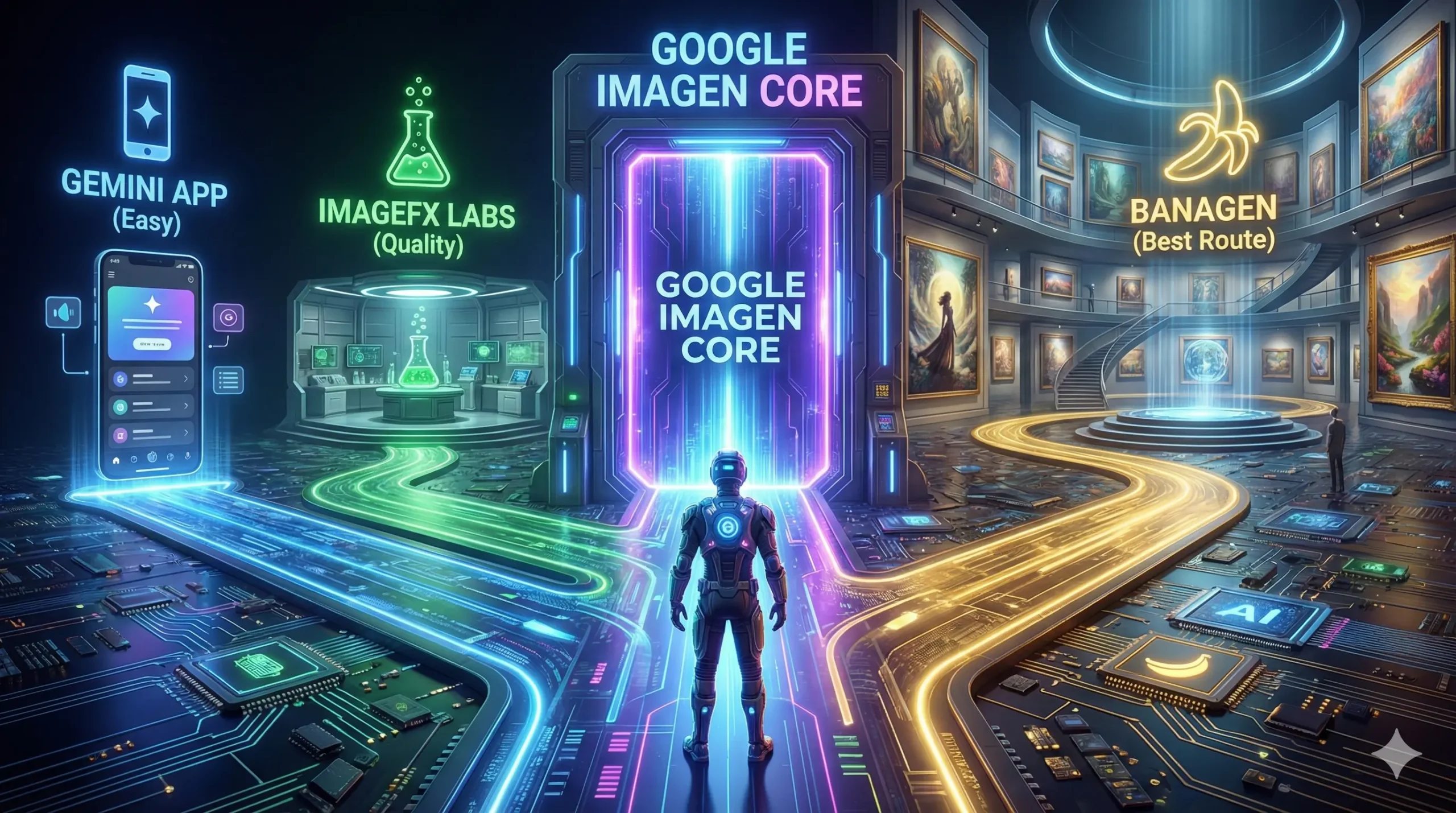
Let me save you hours of frustration: Google Imagen isn’t a single standalone “Imagen website” like Midjourney. Imagen is a model that you typically access through other Google products and developer platforms (for example, Google Labs tools like ImageFX, and developer/enterprise options like Vertex AI).
Unlike DALL-E or Midjourney, Google doesn’t offer a standalone website where you can use Google Imagen directly. Instead, they’ve integrated this powerful Google text to image technology into multiple different platforms.
This fragmented approach is why learning how to use Google Imagen can be so confusing for beginners.
Here’s where the confusion comes from when people try Google Imagen use for the first time:
Imagen is the underlying AI model created by Google DeepMind. Think of it as the “engine” that powers image generation.
Gemini is Google’s AI assistant app that can generate images using various models.
ImageFX is Google’s experimental image generation lab at labs.google/fx.
Vertex AI is Google’s enterprise cloud platform for developers.
All of these allow you to use Google Imagen technology, but they’re accessed differently and have different features. The situation gets even more complicated because Google frequently updates which model powers which platform.
As of 2026, Google’s Imagen family includes newer generations (for example, Imagen 4), but which exact Imagen version you get depends on the product you’re using and Google’s current rollout.
However, you might encounter older versions depending on which platform you choose for Google Imagen use.
What is Google Imagen, Really?
Before learning how to use Google Imagen, let’s quickly understand what you’re actually working with.
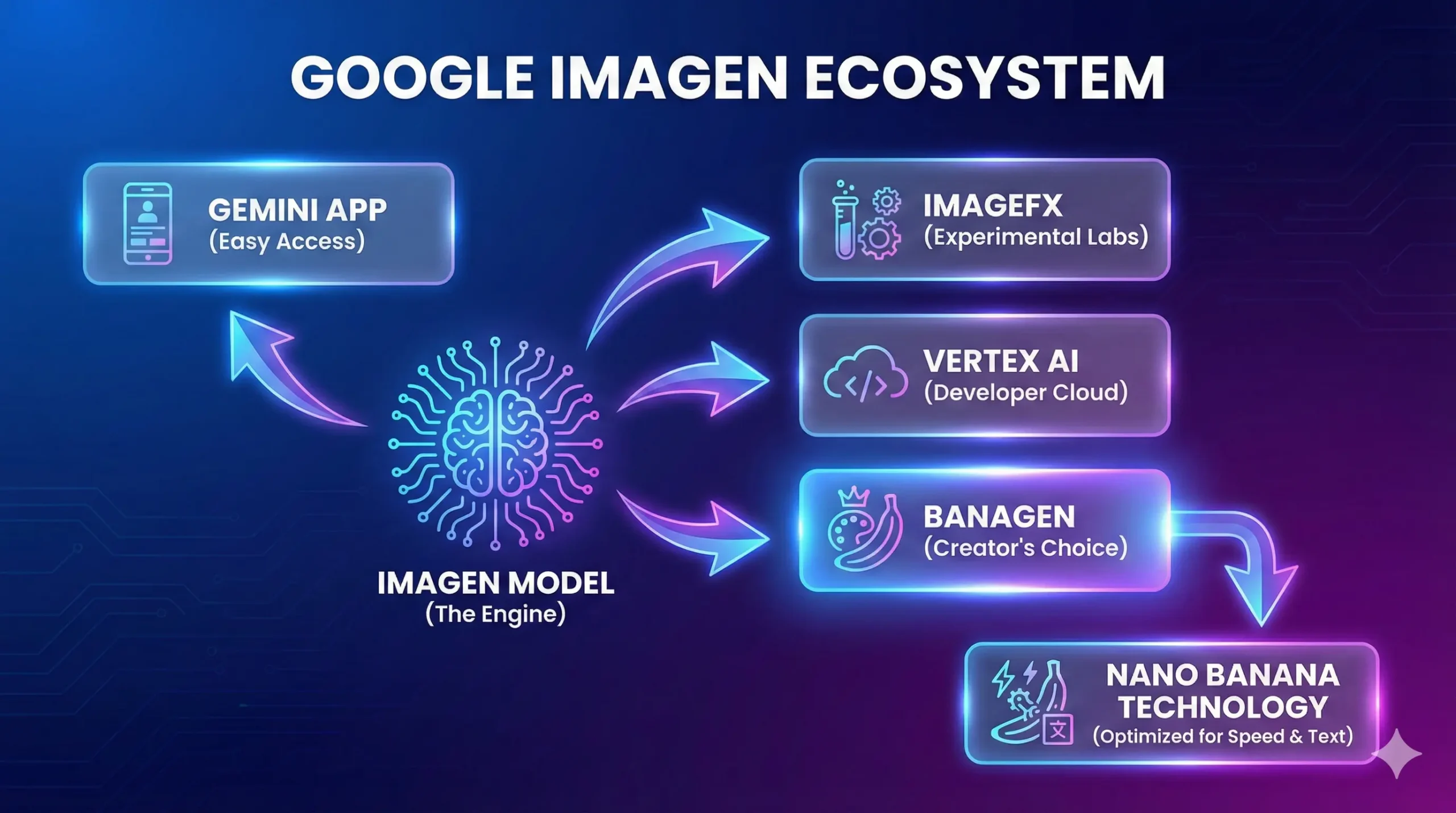
Google Imagen is a text-to-image diffusion model developed by Google DeepMind. The technology has evolved significantly since its initial release, with Imagen 4 now representing the cutting edge of Google’s image AI capabilities.
According to Google DeepMind’s official documentation, Imagen excels at photorealistic image generation, understanding complex prompts, and rendering text within images. However, this last feature still has room for improvement compared to some competitors.
What makes Google Imagen use worthwhile is its focus on quality over speed. The model uses a cascaded diffusion approach, generating images at progressively higher resolutions to achieve remarkable detail. Want to dive deeper into Imagen’s capabilities, limitations, and real-world performance? Read our comprehensive DeepMind Imagen review with detailed testing results and comparison with alternatives.
This is what sets it apart from other Google AI image creator tools.
For a deeper dive into how Imagen fits into Google’s broader AI ecosystem and to understand all the different ways you can access Google’s image generation technology, check out our comprehensive guide to Google AI platforms.
Method 1: How to Use Google Imagen via Gemini App (Easiest Official Way)
One of the easiest consumer ways to generate images in Google’s ecosystem is through the Gemini app. Depending on Google’s rollout, the image results may be powered by different underlying image models (Imagen-family or Gemini image models), and Google doesn’t always label the exact backend model in the UI. This method is perfect for beginners who want to quickly start generating images.
Here’s exactly how to use Google Imagen through Gemini:
Step-by-Step Instructions:
Step 1: Access Gemini. Go to gemini.google.com or open the Gemini mobile app. Sign in with your Google account to start Google Imagen use.
Step 2: Enable Image Generation. In most regions, image generation is enabled by default. If you don’t see the option, check that you’re using a supported account type. Personal Google accounts work, but some Workspace accounts have restrictions.
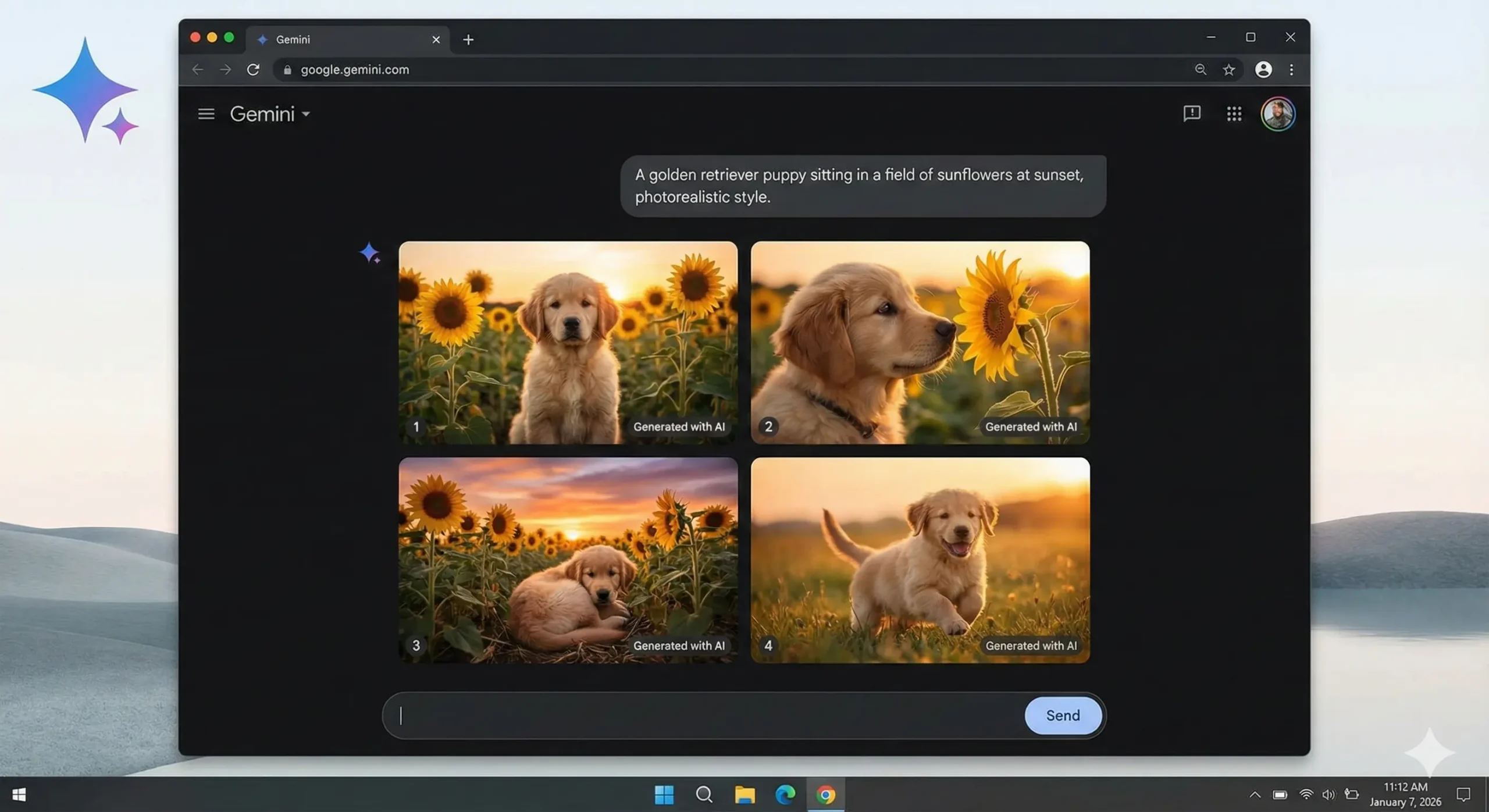
Step 3: Enter Your Prompt. Type a description of the image you want to create. For example: “A golden retriever puppy sitting in a field of sunflowers at sunset, photorealistic style.”
Step 4: Generate and Download. Gemini will generate your image (usually 2-4 variations). Click on any image to view it full-size, then right-click to save.
Pros of Using Gemini for Google Imagen Use:
Gemini offers a familiar chat interface that’s easy for beginners. It provides integration with other Gemini features like text and code.
There’s a free tier available with daily limits, and it works on mobile devices. It’s a great starting point for anyone learning how to use Google Imagen.
Cons of Using Gemini:
The downsides include strict content filters that reject many creative prompts. Quality can be inconsistent compared to dedicated image tools.
You’ll also find limited control over output settings and daily generation limits on the free tier.
Pricing:
The free tier includes limited daily generations. Pricing and quotas change over time and can vary by region. If you’re deciding between free vs paid, check Google’s current plan page inside your Gemini account (it will show the exact price and limits for your region).
Method 2: How to Use Google Imagen via ImageFX (Best Quality)
For many users, ImageFX (Google Labs) is the most direct, consumer-friendly place to try Google’s Imagen-style image generation experience, with prompt suggestions and controls designed specifically for image creation. This is Google’s dedicated experimental lab for image generation and offers the most direct access to Imagen technology.
Step-by-Step Instructions on How to Use Google Imagen Through ImageFX:
Step 1: Visit ImageFX. Go to labs.google/fx. Note: This is part of Google Labs, so availability may vary by region.
Step 2: Sign In. Use your Google account to access the tool and start Google Imagen use immediately.
Step 3: Explore the Interface. ImageFX offers more control than Gemini, including style suggestions and “expressive chips” that help modify your prompt. Take a moment to familiarize yourself with the layout.
Step 4: Write Your Prompt. Be specific and detailed. ImageFX responds well to prompts that include subject, style, lighting, mood, and composition details.
Step 5: Generate and Iterate. Click generate, review the results, and use the editing tools to refine. You can adjust specific elements without starting over.
Pros of ImageFX for Google Imagen Use:
ImageFX provides higher quality output than Gemini for images. It offers more creative control and style options.
You can iterate and edit results easily, and it’s free to use during the experimental phase.
Cons of ImageFX:
The disadvantages include limited regional availability. It still has Google’s strict content filtering.
Its experimental status means features may change, and there’s no mobile app available—web only.
ImageFX represents Google’s most direct consumer-facing way to use Google Imagen technology. However, as discussed in our Google AI Studio review, Google’s various platforms each have their own strengths and limitations.
Method 3: Use BanaGen (Fastest & Truly Free Alternative)
Here’s the option many people don’t know about when learning how to use Google Imagen: you can access Google’s latest image generation technology through BanaGen—often with better results and fewer restrictions.
How This Works:
BanaGen utilizes Nano Banana technology, which is based on Google’s Gemini architecture. This means you get comparable (and sometimes superior) image generation capabilities through a more user-friendly interface.
You won’t have to deal with the complexity of trying to use Google Imagen through official channels. Curious about how Nano Banana stacks up against Google’s official tools? Our detailed comparison with Nano Banana shows real-world testing results, speed benchmarks, and quality analysis to help you make an informed decision.
Step-by-Step Instructions:
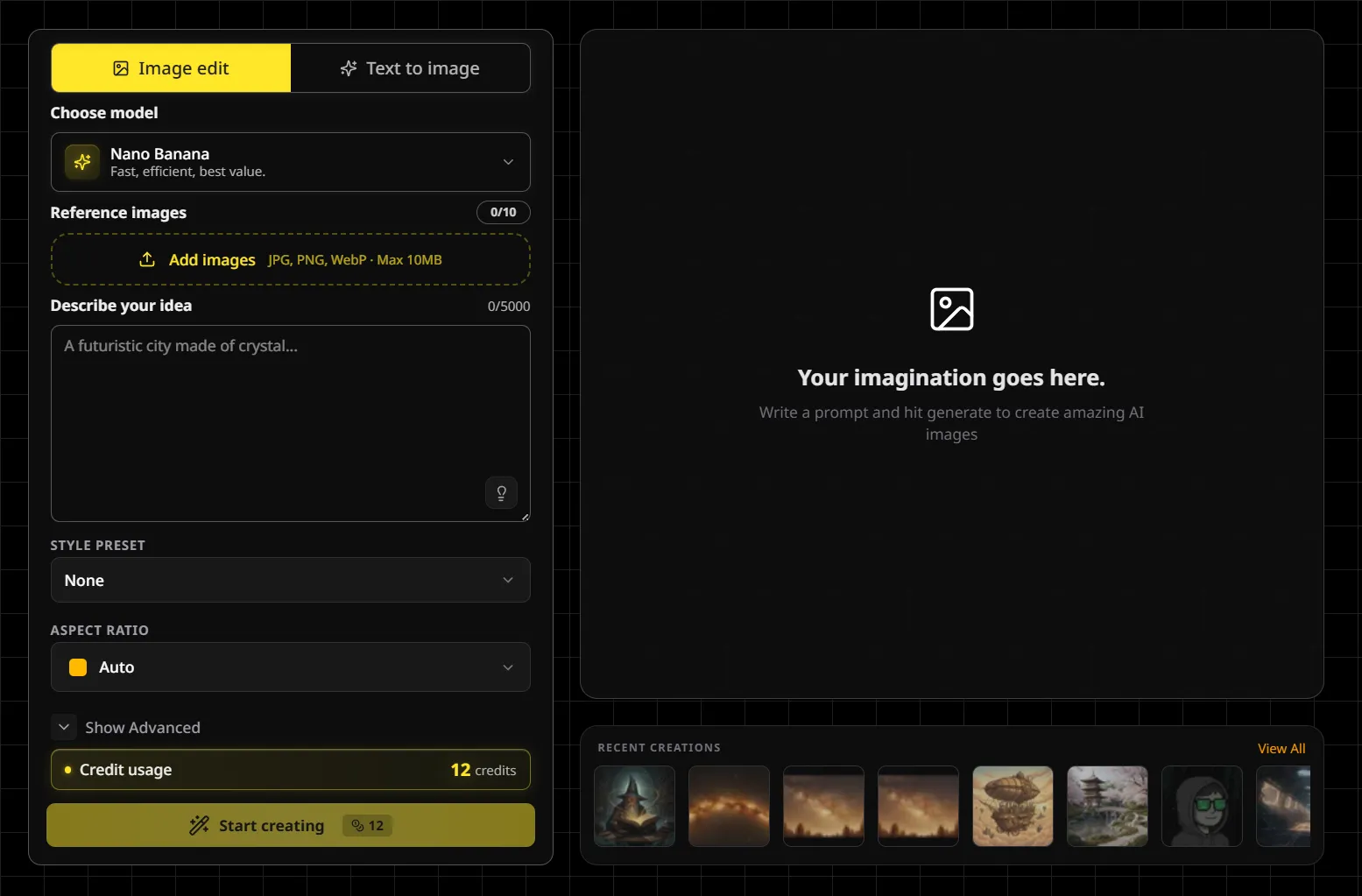
Step 1: Open the BanaGen app. Go to app.banagen.com (web app, no download required).
Step 2: Sign in (Google). Click “Continue with Google” to unlock the generator on app.banagen.com.
Step 3: Generate. Click generate and receive your image in seconds—typically faster than both Gemini and ImageFX.
Step 4: Download. Save your image directly—no watermarks on free generations.
Why Many Users Prefer BanaGen Over Direct Google Imagen Use:
Truly free tier: Generate images without hitting frustrating daily limits.
Quick Google sign-in: Start in seconds with one-tap “Continue with Google” on app.banagen.com (no credit card needed to try the free tier).
Faster generation: Optimized infrastructure means less waiting.
More creative freedom: Balanced content policies that allow artistic expression while maintaining safety.
Text in images: If you need short, readable text (like signs or titles), you’ll usually get better results by keeping the text short and specifying it exactly (e.g., “The sign reads exactly ‘SUMMER SPECIAL’”) and a simple font style (bold sans-serif).
Consistent results: Unlike Google’s platforms where output quality varies, BanaGen provides reliable, predictable results.
For those interested in creating AI art with Google technology, BanaGen offers the most accessible entry point.
Quick Comparison: Which Method for Google Imagen Use Should You Choose?
Now that you know three ways to use Google Imagen (or its technology), let me break down which option works best for different use cases:
Choose Gemini if: You already use Gemini for other tasks and want image generation integrated into your workflow. You’re okay with strict content filters and need mobile access.
Choose ImageFX if: You want the highest quality directly from Google. You’re in a supported region and have time to experiment with prompts and iterations. This is how to use Google Imagen at its best quality.
Choose BanaGen if: You want truly free generation without limits. You need quick, reliable results with more creative freedom. You need accurate text in your images or you’re new to AI image generation.
Feature Comparison Table:
| Feature | Gemini | ImageFX | BanaGen |
|---|---|---|---|
| Free tier | Limited | Yes (experimental) | Yes (generous) |
| Account required | Yes | Yes | No |
| Mobile app | Yes | No | Web (mobile-friendly) |
| Generation speed | Medium | Slow | Fast |
| Content filters | Very strict | Strict | Balanced |
| Text in images | Varies; keep text short | Varies; keep text short | Varies; keep text short |
| Best for | Casual users | Quality seekers | Everyone |
Pro Tips for Better Google Imagen Use
Regardless of which method you choose to use Google Imagen or its alternatives, these tips will help you get better results:
1. Be Specific with Your Prompts
Instead of “a cat,” try “a fluffy orange tabby cat sitting on a vintage armchair, soft window light, cozy living room setting, photorealistic.”
More detail generally means better results when you use Google Imagen.
2. Specify the Style
Include style keywords like “photorealistic,” “digital art,” “oil painting,” “anime style,” or “3D render.”
This helps the AI understand your creative vision whether you use Google Imagen or any alternative.
3. Describe Lighting and Mood
Lighting dramatically affects image quality. Try terms like “golden hour lighting,” “dramatic shadows,” “soft diffused light,” or “neon glow.”
4. Use Aspect Ratio Wisely
If the platform allows, choose aspect ratios that match your intended use. Square (1:1) works for social media, landscape (16:9) for presentations, and portrait (9:16) for mobile content.
5. Iterate and Refine
Your first result rarely is your best. Generate multiple variations, identify what works, and refine your prompt accordingly.
This applies whether you use Google Imagen through Gemini, ImageFX, or BanaGen.
Frequently Asked Questions About How to Use Google Imagen
Is Google Imagen free to use?
Partially. Google offers free tiers through Gemini and ImageFX, but with limitations.
For unlimited Google text to image free generation, BanaGen provides a more generous free tier.
Why can’t I find the Google Imagen website?
There isn’t one. Google Imagen is an AI model, not a standalone product.
You access it through other Google platforms like Gemini, ImageFX, or Vertex AI. This is one of the most common points of confusion for users searching “how to use Google Imagen.”
What’s the easiest way for Google Imagen use?
For beginners, Gemini offers the simplest interface. However, if you want an even easier experience without sign-up requirements, BanaGen provides access to similar technology with a more streamlined process.
What’s the difference between Imagen and Gemini for images?
Imagen is specifically a text-to-image model from DeepMind. Gemini is a multimodal AI assistant that can generate images using various underlying technologies.
When you use Google Imagen through Gemini, you may or may not be using Imagen specifically—Google doesn’t always disclose which model powers which feature.
Is Google Imagen better than DALL-E or Midjourney?
Each has strengths. Imagen excels at photorealism and prompt understanding. DALL-E 3 has excellent text rendering. Midjourney produces highly artistic results.
For a Google AI image generator free alternative that combines multiple strengths, many users find BanaGen offers the best balance.
Can I use Google Imagen for commercial projects?
This depends on your Google subscription tier and the specific platform you use. Always check the current terms of service.
BanaGen offers clear commercial usage rights on paid tiers.
Why do my prompts keep getting rejected during Google Imagen use?
Google’s content filters are notoriously strict. Even innocent prompts can trigger rejections.
If you’re experiencing frequent blocks when trying to use Google Imagen, BanaGen’s more balanced content policy might be a better fit for your creative needs.
Master Google Image Generation: Essential Resources
Want to explore every aspect of Google’s AI image generation technology? These comprehensive guides will help you understand the full landscape and choose the best tools:
- Google AI platforms – Complete overview of Gemini, ImageFX, AI Studio, and Vertex AI with use-case recommendations
- DeepMind Imagen review – In-depth analysis of Imagen’s technology, capabilities, limitations, and DreamBooth personalization
- Comparison with Nano Banana – Side-by-side testing: Google Imagen vs Nano Banana for speed, quality, and ease of use
- Google Text-to-Image Tools – Compare all Google image generators with pricing and feature breakdown
- Google AI Image Generator Guide – Step-by-step tutorials for every Google image creation tool
Start Creating: Learn How to Use Google Imagen Today
Learning how to use Google Imagen doesn’t have to be complicated. While Google’s fragmented approach across Gemini, ImageFX, and Vertex AI can be confusing, you now have a clear roadmap for accessing this powerful technology.
For most users who want simple Google Imagen use without the hassle, I recommend starting with BanaGen.
You’ll get the benefits of Google’s latest AI image generation technology (through Nano Banana) with a simpler interface, faster results, and fewer restrictions. No account setup, no regional limitations, no frustrating content filter rejections.
Ready to create your first AI-generated image? Try BanaGen on app.banagen.com (Google sign-in required). Enter a prompt and see results in seconds.
Have questions about how to use Google Imagen or AI image generation in general? Drop them in the comments below, and I’ll help you out.
