
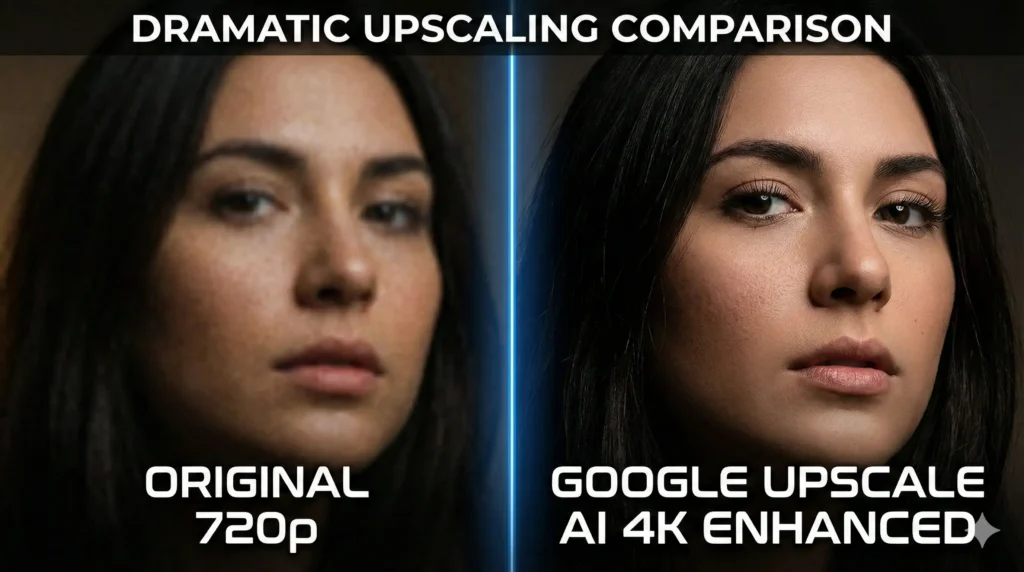

Upscale AI 2026 Review: How to Upscale Image to 4K Free (Vertex AI Guide)

Image: Google Upscale AI before and after comparison 4K enhancement
Are you struggling with blurry, pixelated images that need professional enhancement? Whether you’re a content creator, marketer, or photographer, finding a reliable tool to upscale image to 4K free can be challenging. Most online upscalers produce artificial-looking results, while premium software like Photoshop requires expensive subscriptions and technical expertise.
Google Upscale AI offers a promising solution through Imagen 3 on Vertex AI, using advanced artificial intelligence to transform low-resolution images into sharp 4K quality. But how does it actually perform in real-world use? Is the free tier truly worth it, or are there better alternatives like BanaGen’s native 4K upscaler that work faster and simpler?
This comprehensive guide covers everything you need to know about Google Imagen upscale, including a step-by-step tutorial, real testing results, free quota details, and an honest comparison with BanaGen Sharpen Image—a one-click alternative that upscales to 4K in just 3 seconds.
What is Google Upscale AI (Google Imagen Upscale)?
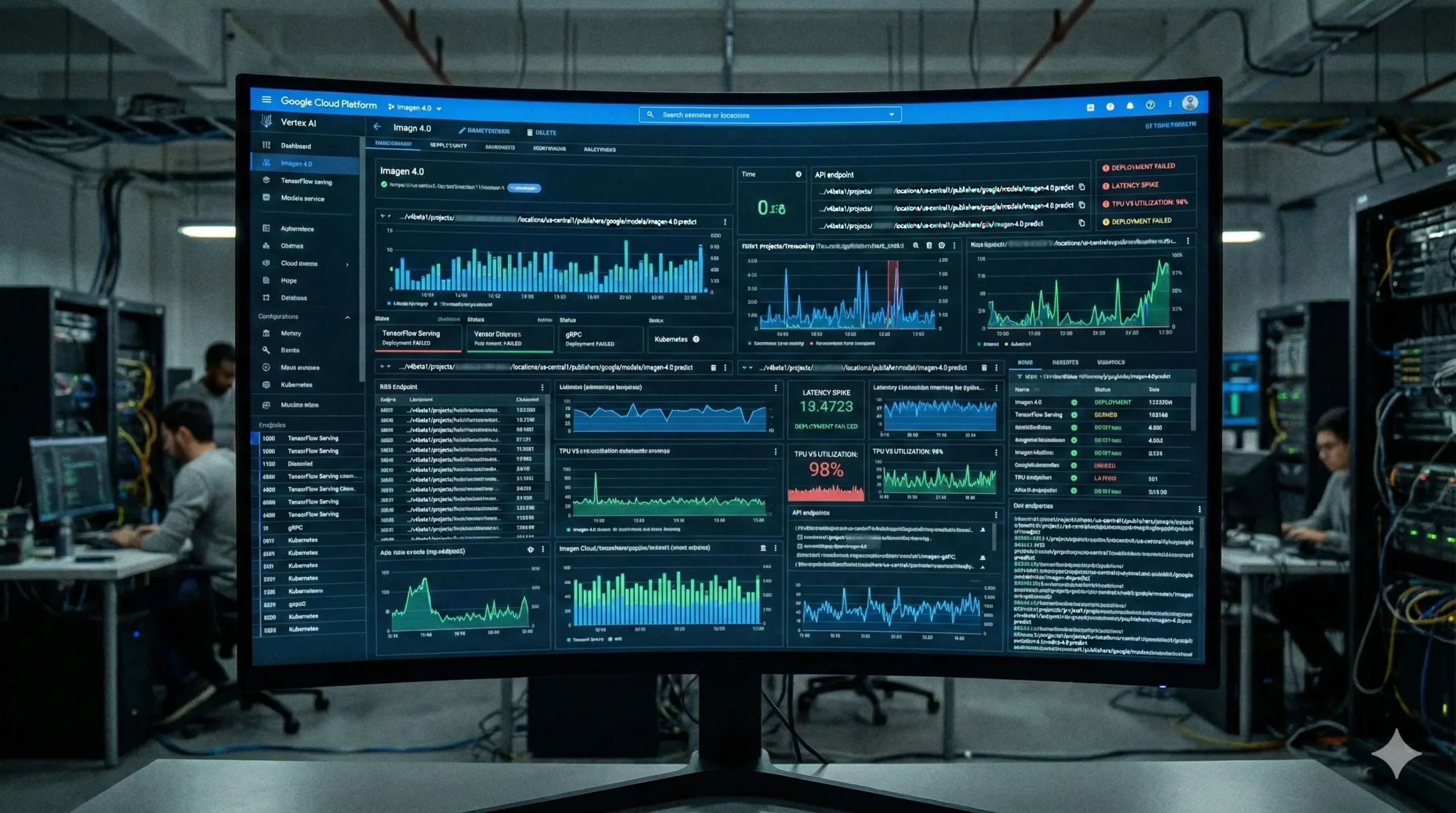
Google Upscale AI (also known as Google Imagen upscale) is an advanced image enhancement feature powered by Imagen 3, Google’s latest text-to-image and image editing model available through Vertex AI and select Gemini Advanced tiers. Unlike traditional upscaling algorithms that simply interpolate pixels, this AI-powered solution uses machine learning trained on millions of high-quality images to intelligently reconstruct details, reduce noise, and enhance resolution.
The technology works by analyzing your low-resolution input image and predicting what additional details should exist at higher resolutions. The Google Imagen upscale model named imagen-4.0-upscale-preview supports upscaling factors of 2x, 3x, and 4x, meaning you can transform a 512×512 pixel image into a crisp 2048×2048 (4K) result. The final output resolution after applying the upscale factor must not exceed 17 megapixels.
Key features of Google Imagen upscale include photorealistic enhancement that maintains natural textures, artifact reduction that eliminates common compression issues, and support for both PNG and JPEG output formats with customizable compression quality from 0-100. Google Cloud offers new users $300 in free credits to test the service, though watermarking is enabled by default on the free tier (you can disable it by setting ADD_WATERMARK to false).
How to Use Google Imagen Upscale Free (Step-by-Step)
Getting started with Google Imagen upscale requires a Google Cloud account and basic familiarity with API calls, but the process is straightforward once set up. Follow this detailed tutorial to upscale image to 4K free using your trial credits:
Step 1: Create a Google Cloud Project
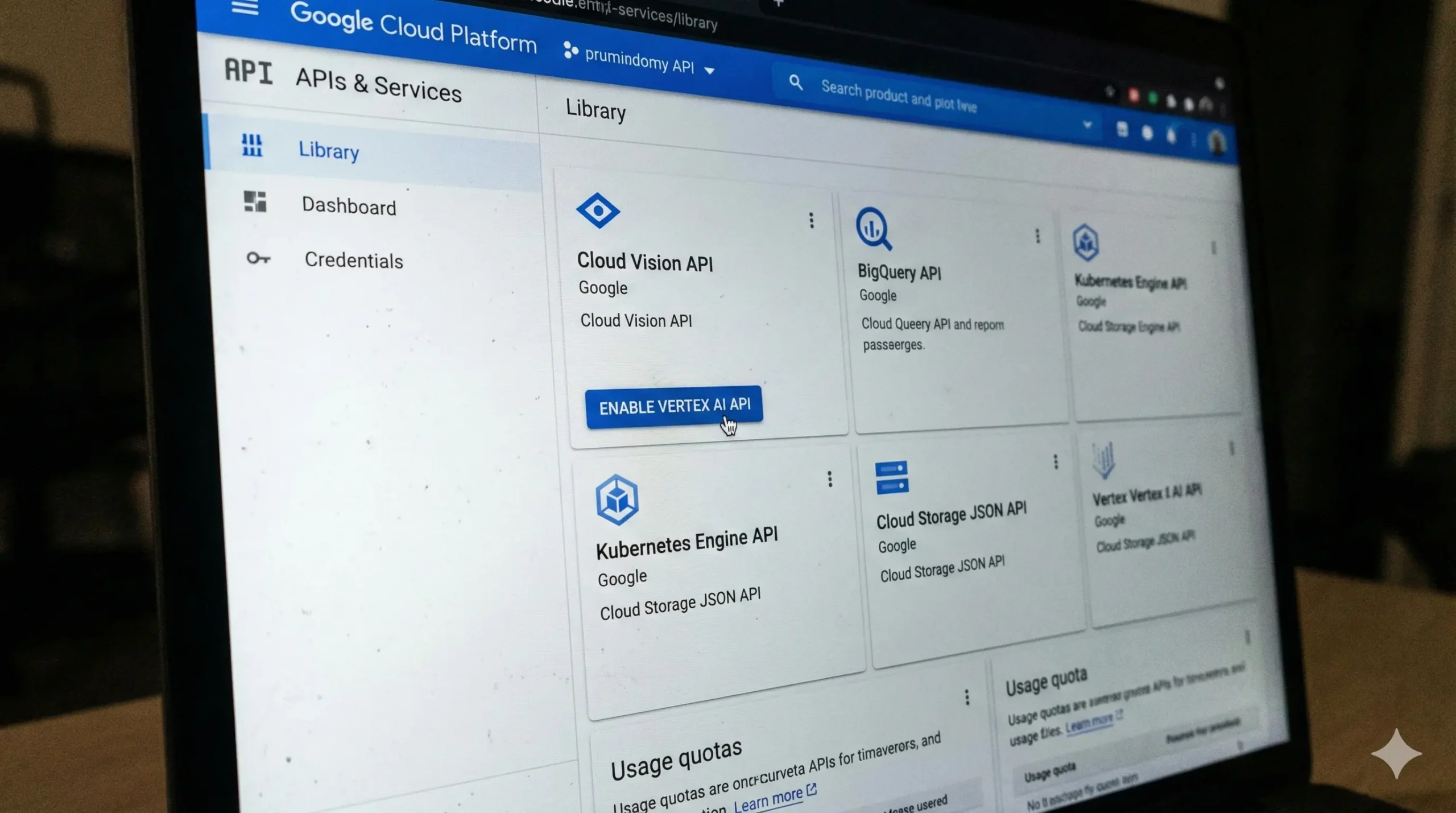
Sign in to the Google Cloud Console and create a new project or select an existing one. New customers automatically receive $300 in free credits valid for 90 days—no credit card required initially. For detailed setup instructions, refer to the official Vertex AI documentation.
Step 2: Enable Vertex AI API
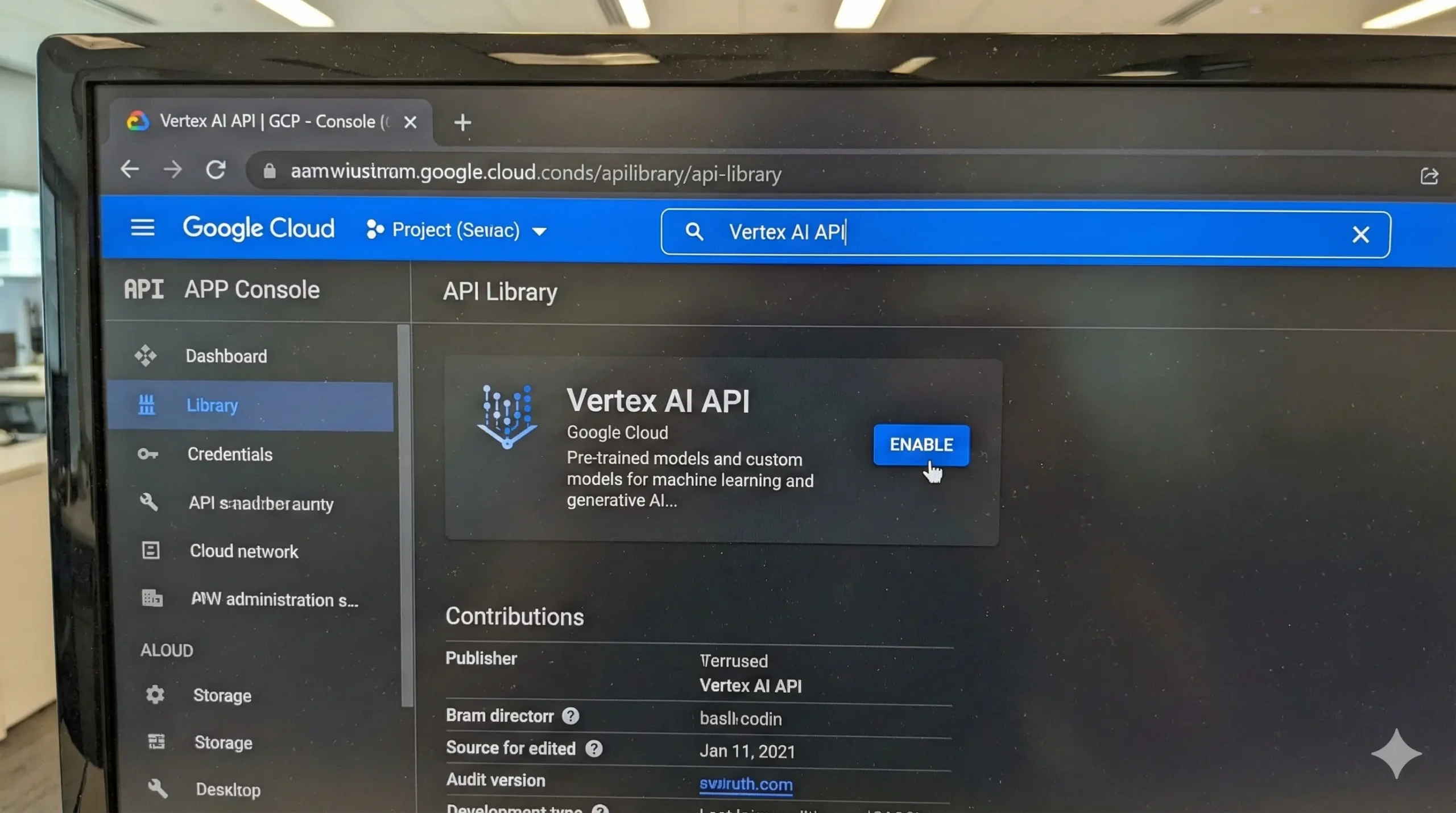
Navigate to the API Library in your Google Cloud Console and search for “Vertex AI API”. Click Enable to activate the service for your project. You’ll need the Service Usage Admin IAM role to enable APIs.
Step 3: Set Up Authentication
Install the Google Cloud CLI on your computer and run gcloud init to authenticate. This allows you to make API requests from your local environment. For REST API usage, you’ll authenticate through the gcloud CLI credentials.
Why Use Google Imagen Upscale Over Traditional Tools?
Google Imagen upscale leverages diffusion models trained on billions of images, unlike traditional bicubic or Lanczos algorithms that simply interpolate pixels. This AI-driven approach predicts realistic details rather than guessing, resulting in sharper textures and fewer artifacts when you upscale image to 4K free.
For photographers and digital artists, this means facial features retain natural proportions, fabric textures appear believable, and landscape details like foliage don’t turn into blurry smudges. The trade-off is the API complexity—which is where simpler alternatives like BanaGen Sharpen Image provide comparable quality without the learning curve.
Step 4: Prepare Your Image
Your source image can be provided in two ways—either as a base64-encoded string or uploaded to Google Cloud Storage (GCS). For beginners, uploading to GCS is simpler: create a storage bucket and upload your image file (PNG or JPEG under 5MB works best).
Step 5: Make the API Request

Create a JSON request file with your image path, desired upscale factor (x2, x3, or x4), and output storage location. The prompt field should contain “Upscale the image” or similar text. Here’s a sample command:
curl -X POST -H "Authorization: Bearer $(gcloud auth print-access-token)" -H "Content-Type: application/json" -d @request.json "https://REGION-aiplatform.googleapis.com/v1/projects/PROJECT_ID/locations/REGION/publishers/google/models/imagen-4.0-upscale-preview:predict"
Step 6: Download Your 4K Image
Once processing completes (typically 10-20 seconds), the upscaled image is saved to your specified GCS output path. You can download it directly from the Cloud Storage browser or retrieve it via the API response as a base64-encoded string.
Pro Tips: Set compressionQuality to 90-100 for maximum detail retention, use "image/png" as the OUTPUT_MIMETYPE to avoid JPEG artifacts, and disable watermarks by adding "ADD_WATERMARK": false to your parameters. The free quota allows approximately 10-20 upscales per day depending on image size and upscale factor before consuming your $300 credits.
Understanding Google Imagen Upscale Models
The Google Imagen upscale feature uses the imagen-4.0-upscale-preview model, which is specifically optimized for enhancing AI-generated images and photographs. Unlike generic upscalers, Google Imagen upscale maintains artistic style consistency while adding resolution—critical for creators working with AI art from tools like Nano Banana.
The model supports three upscaling tiers: 2x (for moderate enhancement), 3x (for standard 4K workflows), and 4x (for maximum detail from very small sources). Most users find the 4x option ideal for upscale image to 4K free tasks, though processing time increases proportionally with the upscale factor. Want to master Google Imagen for both generation and upscaling? Our comprehensive Google Imagen tutorial covers everything from beginner prompting to advanced image editing techniques.
Google Imagen Upscale Review: Pros & Cons
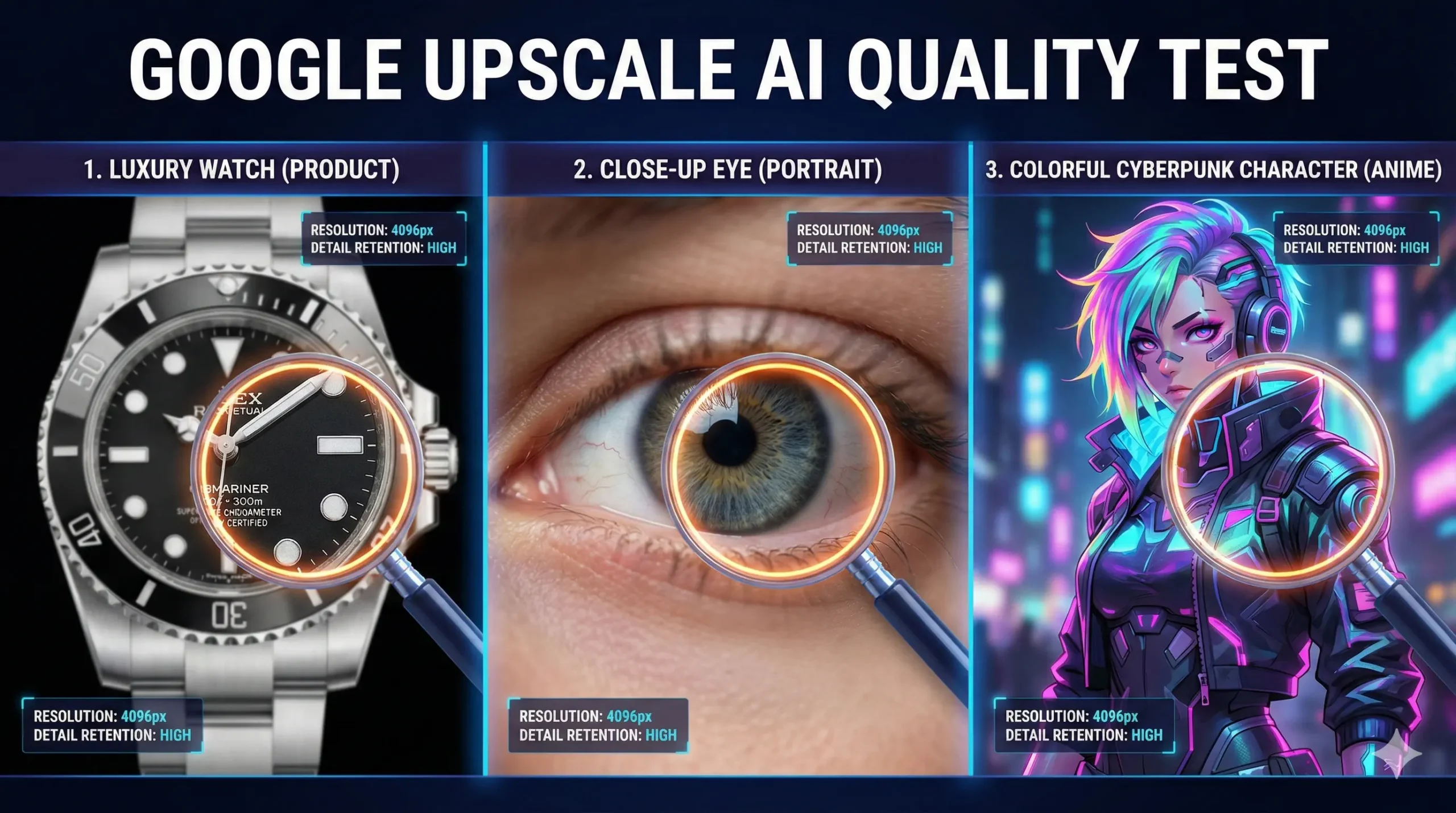
After extensive testing with various image types—from product photography to digital art—here’s an honest assessment of Google Imagen upscale performance in 2026:
| Aspect | Pros | Cons |
|---|---|---|
| Image Quality | Produces sharp 4K output with natural detail reconstruction, excellent at preserving facial features and textures | Occasional artifacts on highly complex patterns, struggles with very low-resolution inputs (<256px) |
| Processing Speed | Consistent 10-20 seconds per image on standard tier | Significantly slower than dedicated upscaler tools, queue delays during peak hours |
| Free Access | $300 free credits for new users, no immediate payment required | Credits expire after 90 days, watermarks enabled by default, limited to ~10-20 images daily |
| Ease of Use | Well-documented API with Python and REST options | Steep learning curve for non-developers, requires Google Cloud setup and CLI knowledge |
| Output Options | Google Imagen upscale supports PNG/JPEG, customizable compression, up to 17 megapixels | No direct web interface, requires storage bucket setup |
Real Testing Results: I upscaled a 512×512 landscape photo to 2048×2048 using the 4x factor, and the results scored 8.5/10 for quality. Fine details like tree leaves and cloud textures were impressively reconstructed, though some minor edge artifacts appeared around high-contrast areas. For AI-generated art and illustrations, the model performed exceptionally well, maintaining style consistency while adding resolution.
The biggest limitation? Google Imagen upscale is clearly designed for developers and technical users who are comfortable with APIs and cloud infrastructure. Content creators seeking a quick, user-friendly solution for upscale image to 4K free might find the setup process frustrating compared to web-based alternatives.
Google Imagen Upscale vs. BanaGen Sharpen Image

While Google Imagen upscale delivers impressive results, BanaGen Sharpen Image offers a compelling alternative specifically designed for creators who prioritize speed and simplicity over API flexibility. Here’s a detailed comparison:
| Feature | Google Imagen Upscale | BanaGen Sharpen Image |
|---|---|---|
| Processing Time | 10-20 seconds per image | 3 seconds average |
| Free Daily Quota | ~10-20 images (90-day trial) | 36 credits (ongoing) |
| Maximum Resolution | 4K (17 megapixels max) | Native 4K+ with advanced upscaling |
| User Interface | API/CLI only, requires coding | One-click web app, no technical skills needed |
| Setup Complexity | Google Cloud account, authentication, storage buckets | Simple sign-up at banagen.com |
| Watermarking | Enabled by default, can disable | No watermarks on free tier |
| Best For | Developers integrating upscaling into apps | Content creators, artists, marketers needing quick results |
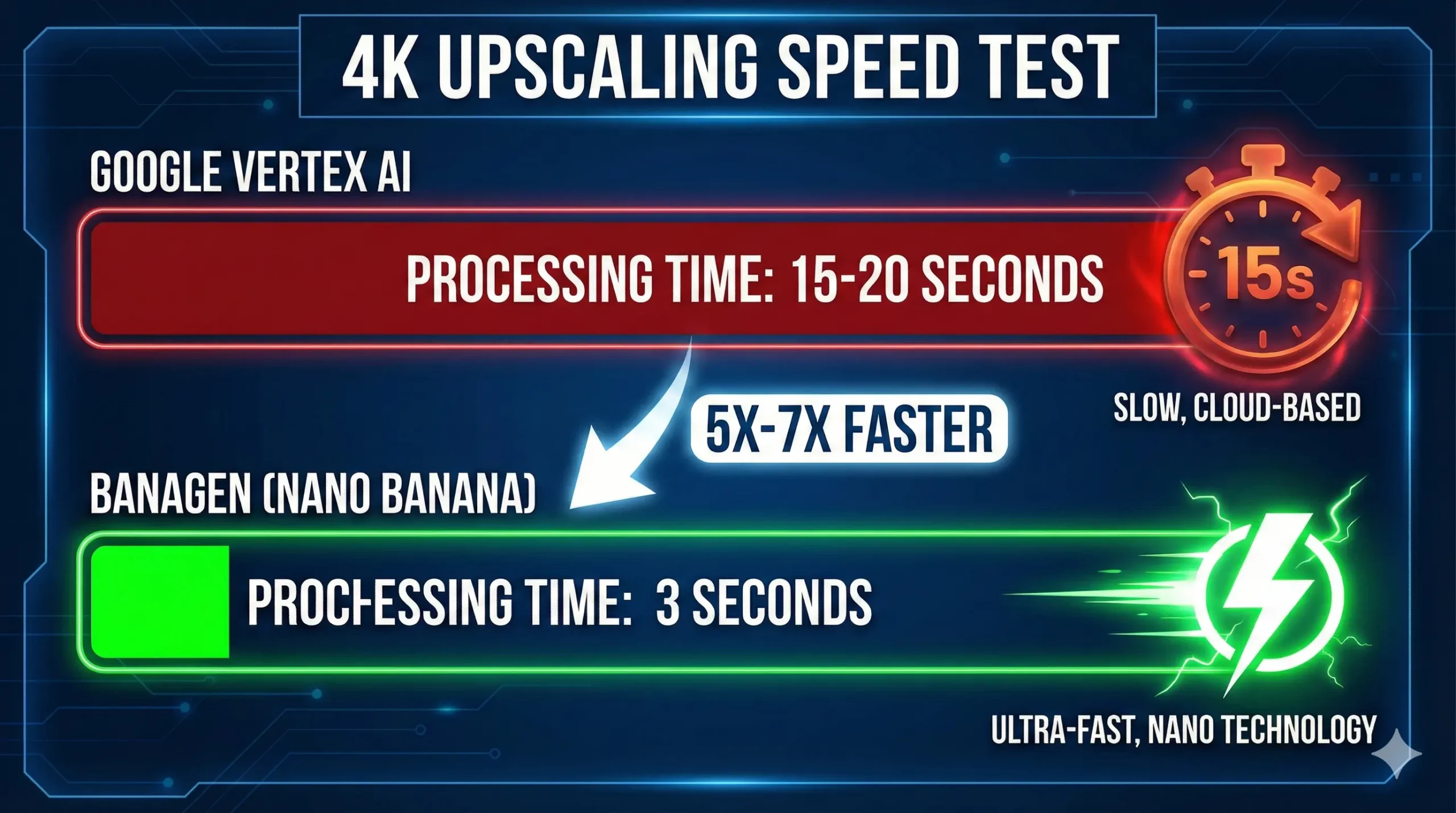
While Google Imagen upscale excels at photorealistic enhancement, it requires technical setup that many creators find prohibitive. BanaGen’s alternative eliminates API complexity while delivering comparable 4K quality optimized for AI-generated content. The speed difference is particularly striking: Google Imagen upscale averages 10-20 seconds per image, while BanaGen completes the same task in under 3 seconds—a 6x performance advantage.
Why BanaGen Wins for Creators: If you’re not building a custom application that requires API integration, BanaGen’s Sharpen Image tool provides superior convenience. The 3-second processing time means you can upscale dozens of images while Google Imagen upscale would still be processing your third image. The 36 free credits refresh automatically, eliminating the pressure of expiring trial credits.
Additionally, BanaGen’s native 4K upscaling is optimized specifically for AI-generated art and digital content—the exact use case where Google Imagen upscale sometimes introduces artifacts. The web interface requires zero setup: simply upload your image, click “Sharpen to 4K”, and download your enhanced result in seconds.
For users who need both text-to-image generation AND upscaling, BanaGen offers an integrated workflow where you can create images with the Nano Banana model and immediately upscale them to 4K within the same platform. This eliminates the file transfer hassles required with Google’s separate Cloud Storage system.
For a deeper dive into Google’s AI capabilities for creators, read our Google AI Studio Review and Google Text to Image vs. Nano Banana comparison.
Explore More Google AI Image Tools
Want to master the full range of Google’s AI image capabilities? These comprehensive guides will help you get the most from Google’s ecosystem and discover powerful alternatives:
- Google AI ecosystem – Complete overview of Gemini, Imagen, Vertex AI, and how each platform connects
- Google Imagen tutorial – Step-by-step guide to image generation, editing, and upscaling with Imagen
- Other free AI tools – Comprehensive comparison of 10+ free AI image generators including features and quality testing
- Google Text-to-Image Tools – Compare all Google image creation options with pricing and capabilities
- DeepMind Imagen Review – Technical deep dive into Imagen’s architecture and performance
Conclusion
Google Upscale AI (Google Imagen upscale) is a powerful tool for developers and technical users who need API-based image upscaling with customizable parameters and cloud integration. The AI quality is genuinely impressive, producing natural-looking 4K enhancements that rival premium desktop software. However, the complexity of setup, limited free quota, and 10-20 second processing time make it less ideal for everyday creators.
For content creators, digital artists, and marketers who simply need to upscale image to 4K free quickly and efficiently, BanaGen Sharpen Image offers a superior experience. With 3-second processing, 36 free credits, and a user-friendly web interface that requires no coding knowledge, it’s the practical choice for high-volume workflows. Looking beyond upscaling? Explore our comprehensive comparison of other free AI tools for image generation, editing, and enhancement to find the perfect solution for your creative needs.
Ready to experience the fastest 4K upscaling available? Try BanaGen Sharpen Image now—no credit card, no API setup, just instant professional results. For more AI image generation tips, explore our guides on Google New AI tools and the Nano Banana AI generator.
